
For most laptop owners, the Anker 7-in-1 USB-C Hub is the best overall USB hub here: it balances everyday port expansion with 4K HDMI. The UGREEN 5-in-1 USB-C Hub suits users who want HDMI and pass-through charging, while the Sabrent 10-Port Powered Hub offers more connections for a desktop full of peripherals. The key choice is between a simple USB-A splitter, a USB-C adapter with video and charging, and a powered hub built for several devices. More ports can mean a larger footprint, an extra power supply, or fewer features per connection. Read on for the full breakdown and advice on matching a hub to your devices.

Get privacy and security gear delivered free with Prime
- Fast, free delivery on millions of items
- Prime Video, Amazon Music and more included
- Member-only deals all year
Key Takeaways
- Anker 7-in-1 is the strongest everyday fit among the laptop-oriented adapters because it combines USB-C expansion with 4K HDMI without jumping to a full docking station.
- The UGREEN 5-in-1 adds 100W power delivery alongside HDMI, making it a better match when charging through the hub matters more than having many ports.
- Sabrent 10-Port Powered Hub and ONFINIO 7-Port Hub address a different problem from USB-C adapters: managing several USB-A accessories, with individual switches useful for controlling attached devices.
- The VIENON, Anker, Acer, and UGREEN 4-port USB 3.0 hubs show that cable length and placement can matter as much as port count when a desktop or laptop has only USB-A available.
- The Anker Prime 14-in-1 is the most expansive option, but its docking-station format makes sense chiefly for multi-display and desk setups rather than buyers seeking a small travel hub.
| Anker 7-in-1 USB-C Hub with 4K HDMI |  | Best Overall | Ports: HDMI, 2 USB-A 3.0, USB-C data, USB-C PD input, SD card slot, TF card slot | Video output: 4K at 60Hz via HDMI | Data transfer speed: Up to 5Gbps | VIEW ON AMAZON | See Our Full Breakdown |
| Anker Nano 10-in-1 USB-C Hub with Smart Display |  | Best for High-Refresh Multi-Display Setups | Ports: HDMI 2.1, DisplayPort 1.4, 100W max PD-IN, 10Gbps USB-C, 10Gbps USB-A, 2 x 5Gbps USB-A, Gigabit Ethernet, SD and microSD 3.0 | Host charging: Up to 80W | Single-display output: Up to 4K at 144Hz or 2K at 240Hz | VIEW ON AMAZON | See Our Full Breakdown |
| VIENON 4-Port USB 3.0 Hub |  | Best Simple USB-A Expansion | Ports: 4 USB ports | Host interface: USB-A | Data transfer rate: Up to 5Gbps | VIEW ON AMAZON | See Our Full Breakdown |
| Anker 332 5-in-1 USB-C Hub with 4K HDMI | 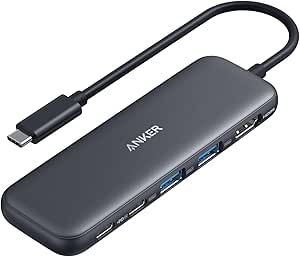 | Best for Basic Monitor Connections | Connectivity: 1 HDMI, 1 USB-C data, 2 USB-A data, 1 USB-C PD-IN | Data transfer speed: Up to 5Gbps | Display output: Up to 4K at 30Hz | VIEW ON AMAZON | See Our Full Breakdown |
| Denlane 8-in-2 USB-C Hub with USB-A Ports, Card Reader, and Audio Adapter |  | Best for Mixed Everyday Accessories | Ports: 1 USB 3.0, 4 USB 2.0, 1 USB-C data transfer | Card reader: TF and SD | Audio: 3.5 mm audio adapter | VIEW ON AMAZON | See Our Full Breakdown |
| Anker 4-Port USB 3.0 Data Hub |  | Best for a Simple Desktop Setup | Ports: 4 USB-A | USB standard: USB 3.0 | Data transfer speed: Up to 5Gbps | VIEW ON AMAZON | See Our Full Breakdown |
| ONFINIO 7-Port USB 3.0 Hub with Individual On/Off Switches |  | Best for Switchable Peripheral Control | Ports: 7 USB 3.0 ports | Data transfer speed: Up to 5Gbps | Backward compatibility: USB 2.0 and USB 1.0 | VIEW ON AMAZON | See Our Full Breakdown |
| Acer 4-Port USB 3.0 Hub with 2 ft Cable |  | Best for Flexible Placement | USB-A ports: 4 | Data transfer rate: Up to 5Gbps | Cable length: 2 ft | VIEW ON AMAZON | See Our Full Breakdown |
| Anker 4-in-1 USB-C Data Hub |  | Best Compact USB-C Data Hub | Ports: 4-in-1 USB hub | Interface: USB-C | Data transfer speed: Up to 5Gbps | VIEW ON AMAZON | See Our Full Breakdown |
| UGREEN 5-in-1 USB-C Hub with 4K HDMI and 100W Power Delivery |  | Best for a USB-C Laptop Desk Setup | Connectivity: 4K HDMI, 1 USB-C PD port, 3 USB-A ports | Power delivery: Up to 100W | USB-A ports at 5Gbps: 1 | VIEW ON AMAZON | See Our Full Breakdown |
| UGREEN 4-Port USB 3.0 Hub, USB-A, 0.5 ft |  | Best Compact USB-A Hub | Ports: 4 USB-A ports | Interface: USB 3.0 | Maximum transfer speed: 5 Gbps | VIEW ON AMAZON | See Our Full Breakdown |
| FORIDA 7-Port USB-C Hub with USB 3.0 and USB 2.0 |  | Best for USB-C Peripheral Expansion | Ports: 4 USB-C 3.0 data ports, 2 USB 2.0 ports, 1 USB-C power port | Maximum data transfer speed: 5 Gbps | Power input: 5V/3A, up to 15W | VIEW ON AMAZON | See Our Full Breakdown |
| Sabrent 10-Port Powered USB 3.0 Hub with Individual Switches and LEDs |  | Best for a Multi-Device Desk | Ports: 10 USB ports | Data transfer rate: Up to 5 Gbps | Power adapter: 60 W, 12 V/5 A | VIEW ON AMAZON | See Our Full Breakdown |
| 7-Port USB 3.0 Hub with 4-Foot Cable |  | Best for Flexible Desk Placement | Ports: 7 USB ports | Data transfer speed: Up to 5 Gbps | Cable length: 4 ft | VIEW ON AMAZON | See Our Full Breakdown |
| Anker Prime 14-in-1 Dual Monitor Docking Station |  | Best Premium Docking Station | Connectivity: 14-in-1 | Data ports: 11 | Total charging output: 160 W | VIEW ON AMAZON | See Our Full Breakdown |
| usb hub | Ports | Compatibility |
|---|---|---|
| Anker 7-in-1 USB-C Hub with 4K | HDMI, 2 USB-A 3.0, USB-C data, USB-C PD input, SD card slot, TF card slot | — |
| Anker Nano 10-in-1 USB-C Hub w | HDMI 2.1, DisplayPort 1.4, 100W max PD-IN, 10Gbps USB-C, 10Gbps USB-A, 2 x 5Gbps USB-A, Gigabit Ethernet, SD and microSD 3.0 | Windows 10/11 and macOS; requires USB-C with Power Delivery, DisplayPort 1.2/1.4/2.1, and USB4 or Thunderbolt 3/4/5 |
| VIENON 4-Port USB 3.0 Hub | 4 USB ports | Windows, macOS, Linux, laptops, desktops, Xbox, and PS4 |
| Anker 332 5-in-1 USB-C Hub wit | — | USB-C, USB4, and Thunderbolt; macOS 12+, Windows 10/11, and ChromeOS |
| Denlane 8-in-2 USB-C Hub with | 1 USB 3.0, 4 USB 2.0, 1 USB-C data transfer | — |
| Anker 4-Port USB 3.0 Data Hub | 4 USB-A | — |
| ONFINIO 7-Port USB 3.0 Hub wit | 7 USB 3.0 ports | — |
| Acer 4-Port USB 3.0 Hub with 2 | — | Windows, ChromeOS, Linux; laptops, desktops, and gaming consoles |
| Anker 4-in-1 USB-C Data Hub | 4-in-1 USB hub | — |
| UGREEN 5-in-1 USB-C Hub with 4 | — | — |
| UGREEN 4-Port USB 3.0 Hub | 4 USB-A ports | Windows, macOS, Linux, Chrome OS, and USB-A devices |
| FORIDA 7-Port USB-C Hub with U | 4 USB-C 3.0 data ports, 2 USB 2.0 ports, 1 USB-C power port | — |
| Sabrent 10-Port Powered USB 3. | 10 USB ports | Windows, macOS, Linux; backward compatible with USB 2.0 and 1.1 |
| 7-Port USB 3.0 Hub with 4-Foot | 7 USB ports | Windows, macOS, Linux |
| Anker Prime 14-in-1 Dual Monit | — | USB-C, USB4, Thunderbolt; Windows 10 and 11, ChromeOS, and laptops with DP Alt Mode and Power Delivery; Linux not supported |
More Details on Our Top Picks
Anker 7-in-1 USB-C Hub with 4K HDMI
Seven practical connections and 4K at 60Hz HDMI make this a versatile fit for a laptop used at a desk and on the go. Compared with the Anker 332 5-in-1 USB-C Hub, it adds SD and TF card readers and supports a smoother 60Hz 4K display, which helps when editing or moving files while connected to a monitor. Its up to 85W laptop charging also keeps a compatible laptop powered through the hub. The tradeoff is that video runs only through HDMI: the USB-C data port cannot drive a display. Buyers who need Ethernet, DisplayPort, or a built-in status display should look instead at the Anker Nano 10-in-1 USB-C Hub with Smart Display. For everyday laptop expansion without those extras, this is the more compact and focused choice.
Pros:- Combines HDMI, USB-A, USB-C data, and SD and TF card readers
- Supports 4K video at 60Hz through HDMI
- Provides up to 85W laptop charging with a suitable power source
- USB data ports support speeds up to 5Gbps
Cons:- Only HDMI supports video output
- USB-C data port cannot project video
Best for: USB-C laptop owners who want a compact desk-and-travel hub with HDMI, card readers, and pass-through charging
Not ideal for: People who need Ethernet, DisplayPort, or video output over USB-C
- Ports:HDMI, 2 USB-A 3.0, USB-C data, USB-C PD input, SD card slot, TF card slot
- Video output:4K at 60Hz via HDMI
- Data transfer speed:Up to 5Gbps
- USB-C PD input:Up to 100W
- Laptop charging:Up to 85W
- Warranty:18 months
Our verdict“Choose this for a compact, well-rounded USB-C hub with card readers and smooth 4K HDMI; look elsewhere if you need Ethernet or another display connection.”
Anker Nano 10-in-1 USB-C Hub with Smart Display
Display flexibility and a broad port selection set this apart from the simpler Anker 7-in-1 USB-C Hub. HDMI 2.1 and DisplayPort 1.4 support high-refresh-rate output, while Gigabit Ethernet, multiple USB speeds, and SD and microSD slots help replace several desk adapters. The built-in display gives a quick view of port status, charging, and data speeds; its focus timer adds a small desk-management extra. With a suitable charger, it can deliver up to 80W to the host. That breadth brings real limits: the charger is not included, Linux is unsupported, and dual displays mirror on macOS. Dual-screen output also depends on compatible host hardware. This makes more sense for a carefully matched Windows workstation than for someone seeking a basic, low-fuss travel hub.
Pros:- HDMI 2.1 and DisplayPort 1.4 support high-refresh displays
- Includes Gigabit Ethernet and SD and microSD card readers
- Built-in display shows port, charging, and data information
- Long host cable and rear-facing ports can help organize a desk
Cons:- Charger is not included
- Dual displays mirror each other on macOS
- Not compatible with Linux
Best for: Windows laptop users with compatible USB-C, USB4, or Thunderbolt hardware who need high-refresh displays, wired Ethernet, and varied peripherals
Not ideal for: Linux users, Mac users who need separate images on two external displays, or buyers who want a hub with a charger included
- Ports:HDMI 2.1, DisplayPort 1.4, 100W max PD-IN, 10Gbps USB-C, 10Gbps USB-A, 2 x 5Gbps USB-A, Gigabit Ethernet, SD and microSD 3.0
- Host charging:Up to 80W
- Single-display output:Up to 4K at 144Hz or 2K at 240Hz
- Dual-display output:Up to 2K at 240Hz per display; requires host support for DP 2.1 with DSC 3:1
- Built-in host cable:27.6 inches
- Compatibility:Windows 10/11 and macOS; requires USB-C with Power Delivery, DisplayPort 1.2/1.4/2.1, and USB4 or Thunderbolt 3/4/5
- Linux compatibility:Not compatible
- Included accessory:Magnetic base
Our verdict“Pick this for a compatible Windows desk setup that needs high-refresh displays and broad connectivity, but check host support and OS limits first.”
VIENON 4-Port USB 3.0 Hub
This is the straightforward choice for turning one USB-A port into four when a laptop or desktop is short on connections for a keyboard, mouse, flash drive, or printer. Its plug-and-play setup and broad listed compatibility make it less demanding than the USB-C-focused Anker 7-in-1, which adds charging, video, and card-reader functions at the cost of extra requirements. The VIENON hub is small and light enough to pack for travel, and its USB 3.0 connection supports speeds up to 5Gbps. The limitation is that the data rate is specified for the USB 3.0 port, while it is not designed for charging high-power devices. Buyers who want more than basic peripheral expansion—or need several fast ports—should compare it with a powered hub such as the Sabrent 10-Port Powered USB 3.0 Hub.
Pros:- Expands one USB-A connection into four USB ports
- USB 3.0 supports data transfer up to 5Gbps
- Compact and light for travel
- Plug-and-play setup works across several listed systems
Cons:- Not suitable for charging laptops, tablets, or other high-power devices
- Only one port is specified for USB 3.0 fast data transfer
Best for: Laptop and desktop users who need a small USB-A splitter for low-power peripherals and occasional file transfers
Not ideal for: People connecting high-power devices, charging tablets or laptops, or requiring multiple specified high-speed ports
- Ports:4 USB ports
- Host interface:USB-A
- Data transfer rate:Up to 5Gbps
- Dimensions:3.94 x 1.18 x 0.39 inches
- Weight:1.5 oz
- Material:Plastic
- Compatibility:Windows, macOS, Linux, laptops, desktops, Xbox, and PS4
- Setup:Plug and play; no driver required
- Power limitation:Does not support charging laptops, tablets, or high-power devices
Our verdict“Choose this for simple, portable USB-A peripheral expansion; pick a powered multiport hub for high-power devices or more fast connections.”
Anker 332 5-in-1 USB-C Hub with 4K HDMI
The Anker 332 suits buyers who want one HDMI connection plus everyday USB ports without paying for features they may not use. It includes two USB-A data ports, a USB-C data port, and USB-C pass-through power, making it a simpler alternative to the Anker 7-in-1. That sibling adds SD and TF readers and supports 4K at 60Hz; the 332 tops out at 4K at 30Hz, a limit that can make cursor movement and animation feel less fluid on a 4K monitor. It still provides up to 85W pass-through charging and data speeds up to 5Gbps. The USB-C power input handles charging only, and none of the data ports output video. Linux users should skip it, too. For a basic compatible laptop setup, its restrained port mix may be enough.
Pros:- Provides HDMI, USB-C data, two USB-A data ports, and USB-C power input
- Supports up to 85W pass-through charging
- USB data ports support speeds up to 5Gbps
- Works with listed USB-C, USB4, and Thunderbolt systems
Cons:- 4K HDMI output is limited to 30Hz
- USB-C PD input is for charging only
- Not compatible with Linux
Best for: USB-C laptop owners who need one external HDMI display, USB accessories, and pass-through charging for everyday desk work
Not ideal for: Linux users, people who need 4K at 60Hz, or anyone expecting the USB-C data port to drive a display
- Connectivity:1 HDMI, 1 USB-C data, 2 USB-A data, 1 USB-C PD-IN
- Data transfer speed:Up to 5Gbps
- Display output:Up to 4K at 30Hz
- Pass-through charging:Up to 85W
- Compatibility:USB-C, USB4, and Thunderbolt; macOS 12+, Windows 10/11, and ChromeOS
- Linux compatibility:Not compatible
- Warranty:18 months
Our verdict“Choose the Anker 332 for basic HDMI and USB expansion with pass-through power, as long as 4K at 30Hz and its OS limits fit your setup.”
Denlane 8-in-2 USB-C Hub with USB-A Ports, Card Reader, and Audio Adapter
The Denlane takes a different approach from the display-focused Anker hubs: it prioritizes USB-A accessories, memory cards, and wired audio in a compact aluminum body. A USB 3.0 port handles transfers up to 5Gbps, while four USB 2.0 ports can serve slower everyday devices such as a keyboard or mouse. SD and TF readers and a 3.5 mm audio adapter add useful connections without drivers. Compared with the VIENON 4-Port USB 3.0 Hub, it offers more kinds of connections, but it needs a suitable USB-C or USB connection and only one USB-A port is specified at the faster USB 3.0 rate. The remaining USB-A ports are limited to USB 2.0 speeds. It also lacks the HDMI and charging features that make the Anker 7-in-1 a better fit for laptop-to-monitor setups.
Pros:- Combines USB-A and USB-C data connections with SD and TF readers
- Includes a 3.5 mm audio adapter
- Aluminum body in a compact design
- Plug-and-play operation requires no apps or drivers
Cons:- Only one USB-A port supports USB 3.0 speeds
- The other USB-A ports are limited to USB 2.0 at up to 480Mbps
- Requires a compatible USB-C or USB connection on the host device
Best for: USB-C device owners who regularly connect wired headphones, memory cards, and several lower-speed USB-A peripherals
Not ideal for: People who need HDMI video, laptop charging, or multiple USB 3.0 ports for fast transfers
- Ports:1 USB 3.0, 4 USB 2.0, 1 USB-C data transfer
- Card reader:TF and SD
- Audio:3.5 mm audio adapter
- USB 3.0 transfer speed:Up to 5Gbps
- USB 2.0 transfer speed:Up to 480Mbps
- Body material:Aluminum
- Setup:Plug and play
Our verdict“Pick this for a compact mix of card, audio, and everyday peripheral connections, but choose another hub for video, charging, or several fast data ports.”
Anker 4-Port USB 3.0 Data Hub
For four everyday USB-A peripherals, this Anker keeps the job straightforward: it turns one computer port into four and supports data speeds up to 5Gbps. That makes it a better fit for a keyboard, mouse, flash drive, or printer than for a desk setup that needs power delivery or display connections. Compared with the ONFINIO 7-Port USB 3.0 Hub, it gives you fewer ports and no individual switches, but its simpler layout suits buyers who only need a modest expansion. The tradeoff is clear: it is for data connections, not device charging, and the supplied details do not specify a cable length or external power input. Its stated heat-resistant, durable design and 18-month warranty add practical reassurance for routine use.
Pros:- Adds four USB-A ports from one computer connection
- Supports data transfer speeds up to 5Gbps
- Designed for heat resistance and durability
- Includes an 18-month warranty
Cons:- Not designed to charge connected devices
- Provides fewer ports and no individual switches compared with the ONFINIO 7-Port hub
- Product details do not specify cable length or an external power input
Best for: Desktop users who need four USB-A data connections for low-power peripherals such as a keyboard, mouse, printer, or flash drive
Not ideal for: Buyers who need to charge phones, run several power-hungry devices, or connect USB-C peripherals
- Ports:4 USB-A
- USB standard:USB 3.0
- Data transfer speed:Up to 5Gbps
- Charging:Not designed to charge devices
- Design:Designed for heat resistance and durability
- Warranty:18 months
Our verdict“Choose this Anker for a simple four-port USB-A data hub when charging and extra port controls are not priorities.”
ONFINIO 7-Port USB 3.0 Hub with Individual On/Off Switches
Seven USB 3.0 ports and individual on/off switches make this ONFINIO the most control-focused pick in this batch. The switches let a desktop user disconnect peripherals without repeatedly unplugging them, while support for USB 2.0 and 1.0 devices helps accommodate older accessories. Compared with the Anker 4-Port USB 3.0 Data Hub, it offers three more connections and per-port controls, which better suits a crowded workspace. That added capacity has a power caveat: power-hungry devices may need an extra supply, and no power supply is specified as included. It also lacks the HDMI and power delivery functions found on the UGREEN 5-in-1 USB-C Hub, so this is a peripheral hub rather than a laptop display adapter.
Pros:- Provides seven USB 3.0 ports from one connection
- Individual switches give control over each port
- Supports USB 2.0 and USB 1.0 devices
- Plug-and-play setup across Windows, Mac OS X, Linux, and Chrome OS
Cons:- Power-hungry devices may require an extra power supply
- No included power supply is specified
- Does not provide HDMI output or USB-C power delivery
Best for: Desktop users with several USB peripherals who want to switch individual connections on and off and need support for older USB devices
Not ideal for: People seeking a powered hub with a confirmed included supply, or a USB-C adapter with video output and power delivery
- Ports:7 USB 3.0 ports
- Data transfer speed:Up to 5Gbps
- Backward compatibility:USB 2.0 and USB 1.0
- Operating system compatibility:Windows, Mac OS X, Linux, Chrome OS
- Setup:Plug and play; no drivers required
- Port controls:Individual on/off switches
- Power:Power-hungry devices may require an extra supply
Our verdict“Pick the ONFINIO if you need seven switchable USB-A connections and can account for the power needs of your devices.”
Acer 4-Port USB 3.0 Hub with 2 ft Cable
A two-foot cable gives this Acer more placement flexibility than a short, directly attached hub, making it easier to put the ports within reach of a laptop or console. It supplies four USB-A 3.0 connections for everyday peripherals and supports data speeds up to 5Gbps. The USB-C input is only for hub power; it does not add data, charge devices, or function as a computer connection. That limitation sets it apart from the Anker 4-in-1 USB-C Data Hub, which connects through USB-C, while Acer instead centers on USB-A and offers a specified power input. Hard drives may need external power through that USB-C port for stable transfers, so this is best for lighter peripherals rather than a demanding storage setup. Its slim, light body is easy to position and carry.
Pros:- Four USB-A ports support data speeds up to 5Gbps
- Two-foot cable allows flexible placement
- Plug-and-play setup requires no driver
- Slim 1.6-ounce design includes an indicator light
Cons:- USB-C port supplies power only and does not transfer data or charge devices
- Hard drives may need external power for stable transfers
- ABS enclosure offers a basic rather than premium material finish
Best for: Laptop, desktop, or gaming-console owners who want four USB-A peripheral ports with a cable long enough for more flexible placement
Not ideal for: Buyers who expect the USB-C port to transfer data, charge a device, or support heavy external drives without added power
- USB-A ports:4
- Data transfer rate:Up to 5Gbps
- Cable length:2 ft
- Power input:USB-C, 5V
- USB-C port function:Power only; no data transfer or device charging
- Compatibility:Windows, ChromeOS, Linux; laptops, desktops, and gaming consoles
- Dimensions:4.13 × 1.18 × 0.35 in
- Weight:1.6 oz
- Enclosure material and color:ABS, black
Our verdict“Choose this Acer for a slim four-port USB-A hub when cable reach matters and you understand the USB-C port is only for power.”
Anker 4-in-1 USB-C Data Hub
Compact USB-C connectivity is the main reason to choose this Anker: it provides four USB ports for data at speeds up to 5Gbps, with a two-foot cable that can keep the hub reachable while the computer sits farther back. Its plug-and-play setup suits people who want to add ports without configuring drivers. Compared with the Acer 4-Port USB 3.0 Hub, this model connects through USB-C rather than a computer’s USB-A port, making it a more natural match for USB-C-equipped laptops. The tradeoff is that the available details do not specify power delivery, video output, or the exact mix of USB port types. Buyers who need HDMI or laptop charging should look instead at the UGREEN 5-in-1 USB-C Hub; this Anker is focused on data expansion.
Pros:- Connects through USB-C
- Supports data transfer speeds up to 5Gbps
- Two-foot cable offers flexible placement
- Compact dimensions and plug-and-play setup suit portable use
Cons:- Power delivery support is not specified
- Video output support is not specified
- The available product details do not identify the exact port mix
Best for: USB-C laptop owners who need a compact, plug-and-play hub for connecting several data peripherals
Not ideal for: People who need HDMI output, confirmed USB-C power delivery, or clearly specified USB-A port details before buying
- Ports:4-in-1 USB hub
- Interface:USB-C
- Data transfer speed:Up to 5Gbps
- Cable length:2 ft
- Dimensions:4.2 × 1.2 × 0.4 in
- Setup:Plug and play
- Warranty:18 months
Our verdict“Choose this Anker for compact USB-C data expansion, and choose the UGREEN instead if you need HDMI or laptop power delivery.”
UGREEN 5-in-1 USB-C Hub with 4K HDMI and 100W Power Delivery
HDMI output and up to 100W power delivery make this UGREEN a broader laptop adapter than the data-only hubs in this group. It combines one HDMI connection, one USB-C power delivery port, and three USB-A ports, so a compatible laptop can connect to a display and receive power while using peripherals. Compared with the Anker 4-in-1 USB-C Data Hub, it offers video and charging functions, but its USB-A speeds vary: one port reaches 5Gbps while the other two top out at 480Mbps. That split matters if you plan to move files through every port; faster storage belongs on the 5Gbps port. The supplied details do not specify cable length, dimensions, or operating system compatibility, so buyers who need a simple, fully described data hub may prefer the Acer or Anker options.
Pros:- Combines HDMI, USB-C power delivery, and three USB-A ports
- Supports 4K HDMI output
- Provides up to 100W USB-C power delivery
- One USB-A port supports data speeds up to 5Gbps
Cons:- Two USB-A ports are limited to 480Mbps
- Cable length and dimensions are not specified
- Operating system compatibility is not specified
Best for: USB-C laptop users who want to connect a 4K display, power the laptop, and attach USB-A peripherals through one adapter
Not ideal for: People who need multiple high-speed USB-A data ports or need confirmed details about cable length and device compatibility
- Connectivity:4K HDMI, 1 USB-C PD port, 3 USB-A ports
- Power delivery:Up to 100W
- USB-A ports at 5Gbps:1
- USB-A ports at 480Mbps:2
- HDMI output:4K
Our verdict“Choose the UGREEN if your USB-C laptop setup needs display output and power delivery, and you can reserve the faster USB-A port for demanding transfers.”
UGREEN 4-Port USB 3.0 Hub, USB-A, 0.5 ft
The UGREEN 4-Port USB 3.0 Hub is a straightforward way to add ports when a laptop has only one available USB-A connection. Its four ports and 5 Gbps data speed suit keyboards, mice, and flash drives, while its short cable and 33 g body make it easier to tuck into a travel pouch than the larger 7-port hubs here. Compared with the Anker 4-Port USB 3.0 Data Hub, this pick’s clear advantage is its especially light, thin design; the available details don’t establish a speed or feature advantage over that alternative. It is a data hub, not a charging station, and four ports may feel limiting if several peripherals stay connected. Choose it for simple expansion and portability; skip it if you need USB-C, video output, or external power.
Pros:- Adds four USB-A ports from a single USB-A connection
- Supports data transfer speeds up to 5 Gbps
- Compact 0.4-inch-thick design weighs 33 g
- Works without additional drivers across Windows, macOS, Linux, and Chrome OS
Cons:- Four ports offer less expansion than the 7-port hubs in this roundup
- No external power or charging capability is specified
- USB-A connection does not add USB-C or display connectivity
Best for: Traveling laptop users who need a few USB-A connections for low-power peripherals and storage
Not ideal for: Desk setups with many connected devices or anyone who needs laptop charging, video output, or USB-C ports
- Ports:4 USB-A ports
- Interface:USB 3.0
- Maximum transfer speed:5 Gbps
- Cable length:0.5 ft
- Thickness:0.4 in
- Weight:33 g
- Compatibility:Windows, macOS, Linux, Chrome OS, and USB-A devices
Our verdict“Pick this lightweight hub for basic USB-A expansion on the go, but choose a larger powered hub for a busy desk.”
FORIDA 7-Port USB-C Hub with USB 3.0 and USB 2.0
The FORIDA 7-Port USB-C Hub gives a USB-C-equipped computer a mix of four USB-C 3.0 data ports and two USB 2.0 ports, plus a separate power input. That layout is more useful for a desk with varied USB-C accessories than the UGREEN 4-Port USB 3.0 Hub, which only adds USB-A connections, while its seven ports provide more room for devices than a compact four-port hub. Its limits shape the recommendation: the power port supplies up to 15 W to peripherals, but does not charge a laptop, and the hub has no video output. The 5V power cable is not included, so using the power input means sourcing one separately. Pick it when your priority is adding USB data ports, not turning one connection into a full docking setup.
Pros:- Provides four USB-C 3.0 data ports and two USB 2.0 ports
- Supports data speeds up to 5 Gbps
- Separate USB-C power input can supply up to 15 W to compatible peripherals
- Compact body has a built-in LED indicator
Cons:- Does not provide video output
- Power input does not charge a connected laptop
- 5V power cable is not included
Best for: USB-C laptop or tablet owners who want several data connections for accessories and peripherals
Not ideal for: Buyers who need HDMI, laptop charging, or a ready-to-use external power cable in the box
- Ports:4 USB-C 3.0 data ports, 2 USB 2.0 ports, 1 USB-C power port
- Maximum data transfer speed:5 Gbps
- Power input:5V/3A, up to 15W
- Cable length:7.87 inches
- Dimensions:1.22 × 5.24 inches
- Video output:Not supported
- Laptop charging:Not supported
- LED indicator:Built-in
Our verdict“Choose FORIDA to expand USB-C data connectivity, provided you do not need displays or laptop charging.”
Sabrent 10-Port Powered USB 3.0 Hub with Individual Switches and LEDs
For a desk where many USB accessories stay connected, the Sabrent 10-Port Powered USB 3.0 Hub offers more port capacity and control than the 7-port options in this roundup. Its individual switches and blue LEDs let you cut power to one device without unplugging it, which is useful for rotating drives or peripherals. The included 60 W adapter and USB 3.0 cable make it a more complete powered setup than the ONFINIO 7-Port USB 3.0 Hub with Individual On/Off Switches can be judged to be from the available details, though ONFINIO shares the appeal of per-port switching. Sabrent’s tradeoff is a tether to an outlet and a larger desk footprint than compact bus-powered hubs. Its listed 43 g weight seems unusually low for a powered hub, so I would not use that figure alone to judge portability.
Pros:- Ten USB 3.0 ports accommodate a large set of peripherals
- Individual switches and LED indicators control each port
- Includes a 60 W power adapter and USB 3.0 cable
- Supports Windows, macOS, and Linux, with USB 2.0 and 1.1 backward compatibility
Cons:- Requires an external power adapter and outlet
- ABS enclosure is less premium than the aluminum-bodied 7-port hub in this roundup
- Does not add video output or laptop charging
Best for: Desktop users who keep many USB peripherals attached and want individual control over their power
Not ideal for: Travelers or minimal setups without a convenient outlet for the external power adapter
- Ports:10 USB ports
- Data transfer rate:Up to 5 Gbps
- Power adapter:60 W, 12 V/5 A
- Compatibility:Windows, macOS, Linux; backward compatible with USB 2.0 and 1.1
- Dimensions:5.7 × 1.9 × 0.94 in
- Weight:43 g
- Enclosure material:ABS
- Color:Black
Our verdict“Choose Sabrent for a crowded desktop that benefits from ten switched ports, and skip it for a travel kit.”
7-Port USB 3.0 Hub with 4-Foot Cable
This 7-Port USB 3.0 Hub is the clearest fit when the computer sits out of reach: its 4-foot cable allows placement closer to a keyboard, drive, or other frequently used peripheral. The aluminum body and seven ports make it a more substantial desk hub than the portable UGREEN 4-Port USB 3.0 Hub, while both support transfer speeds up to 5 Gbps. A USB-C input rated at 5V/3A can power compatible devices, but the listing explicitly says it does not support charging, so it should not be mistaken for a laptop dock or charging hub. The extra cable length helps with placement, though it adds more cable to manage, and the details do not specify individual port switches. Pick it for a reachable cluster of data ports; skip it if charging or per-port controls matter.
Pros:- Seven ports expand one connection for multiple peripherals
- 4-foot cable allows flexible placement
- Supports data transfer speeds up to 5 Gbps
- Aluminum construction and compatibility with Windows, macOS, and Linux
Cons:- Charging is not supported
- No individual port switches are listed
- Longer cable takes more space to route than the compact UGREEN hub’s short lead
Best for: Desk users whose computer is under a desk or positioned away from their peripherals
Not ideal for: Buyers looking to charge a laptop or devices, or who need per-port power switches
- Ports:7 USB ports
- Data transfer speed:Up to 5 Gbps
- Cable length:4 ft
- USB-C port output:5V/3A (15W)
- Material:Aluminum
- Compatibility:Windows, macOS, Linux
- Charging support:Not supported
Our verdict“Choose this hub when cable reach and seven data ports matter more than charging or individual controls.”
Anker Prime 14-in-1 Dual Monitor Docking Station
The Anker Prime 14-in-1 is the outlier here: it goes beyond adding USB ports with up to 160 W total charging output, 11 data ports, and dual HDMI outputs. Compared with the simpler Sabrent 10-port hub, it serves a laptop desk that needs displays and device charging as well as data, and its 10 Gbps maximum data rate is twice the stated 5 Gbps of the USB 3.0 hubs. The display behavior is the main decision point. Windows and supported connections can drive two displays at up to 2K at 60Hz with DP 1.4, but macOS mirrors the external screens; Linux is unsupported, and 5120 × 1440 monitors are not supported. This is a premium dock with specific host and display limits, not a universal upgrade for every USB hub buyer.
Pros:- 14-in-1 connectivity with 11 data ports
- Up to 160 W total charging output for as many as four devices
- Dual HDMI outputs and data speeds up to 10 Gbps
- Compatible with USB-C, USB4, and Thunderbolt connections
Cons:- Not compatible with Linux
- External displays mirror each other on macOS
- Does not support 5120 × 1440 monitors
Best for: Windows laptop users with USB-C, USB4, or Thunderbolt who need dual displays, fast data, and multi-device charging
Not ideal for: Linux users, Mac users who need separate extended displays, or anyone seeking a simple compact USB hub
- Connectivity:14-in-1
- Data ports:11
- Total charging output:160 W
- USB-C ports:3, up to 100 W each
- USB-A port:1, up to 12 W
- Maximum data transfer speed:10 Gbps
- Display outputs:2 HDMI ports; up to 2K at 60Hz with DP 1.4, or 1080p at 60Hz with DP 1.2
- Compatibility:USB-C, USB4, Thunderbolt; Windows 10 and 11, ChromeOS, and laptops with DP Alt Mode and Power Delivery; Linux not supported
- Included cable:USB-C upstream cable, 3.3 ft, 100 W, 10 Gbps
Our verdict“Choose Anker Prime for a capable Windows laptop docking setup, but avoid it if Linux or independent Mac displays are required.”

How We Picked
I ranked these 15 options by how well their connections solve common USB hub problems: adding basic USB-A ports, expanding a USB-C laptop, or managing many desk peripherals. I weighed the usefulness of each port mix, stated data and video features, power arrangements, cable placement, and how easily the design fits its likely setting. A hub with HDMI or power delivery earns its place when those features reduce adapters or keep a laptop setup practical; a larger port count alone does not make a better pick.
The order favors broadly useful designs first, then options for narrower needs such as compact expansion, longer cable reach, device switching, or a powered desktop setup. I also considered the tradeoffs implied by each format: simple data hubs do not replace video adapters, USB-C hubs may leave some ports unavailable depending on the host, and docking stations take more space and commitment. Product details provided do not establish every port’s simultaneous performance or compatibility, so buyers should check the specifications against their computer and accessories before choosing.
Factors to Consider When Choosing Usb Hubs
I’d start with the devices you need to connect, then check which ports and power features your computer can actually support. A hub’s headline port count can hide the difference between basic data expansion and a setup that also handles displays or charging.
Match the hub connector to your computer
USB-A and USB-C describe the physical connector, but the port on your computer also determines what features can work. A USB-C-shaped connection does not automatically support video output or laptop charging, so check the computer’s specifications before buying a hub advertised with HDMI or power delivery. If your computer has only USB-A, a USB-A hub can add data ports but will not turn that connection into a USB-C display output. For mixed-device households, think about which computer will use the hub most often and whether you need a separate adapter for other machines. This check prevents a common mismatch: choosing a capable hub whose standout functions the host cannot provide.
Separate data ports from video and charging
Some hubs mainly add USB ports for peripherals, while others combine data connections with HDMI and pass-through charging. Treat those as different jobs when planning a setup: a USB 3.0 data hub is a fit for accessories, while a USB-C hub with HDMI may also connect a monitor. Power delivery through a hub generally means connecting a separate charger to the hub; it does not mean the hub supplies unlimited power on its own. Check whether the stated charging wattage is input capacity and whether the laptop receives less after the hub uses some power. If you only need a mouse, keyboard, or flash drive, paying attention to display and charging features may add bulk without solving a real need.
Choose a port count that fits actual devices
Count the devices you expect to leave connected, then leave a little room for occasional use. A compact four-port hub is easier to place and carry, while seven or ten ports can reduce cable swapping at a crowded workstation. A larger number of ports does not guarantee that every attached device can draw high power or run at full speed at once. For external drives and other demanding accessories, check how the hub shares bandwidth and whether it has its own power supply. Avoid buying a large hub just to maximize the number on the box; unused connections can cost desk space and complicate cable management.
Decide whether external power is needed
A bus-powered hub draws power through its connection to the computer, which keeps a simple setup portable. That can be enough for low-power accessories, but several devices or power-hungry drives may call for a hub with its own supply. Powered designs take more room and add another cable, so they suit stationary workstations better than light travel kits. Check the power requirements of the devices you plan to connect, especially if they need to charge or spin up reliably. A hub’s port count by itself does not tell you how much power it can deliver.
Plan cable length and placement
The included cable affects whether a hub can sit where its ports are easy to reach. Short leads keep a compact adapter close to a laptop, while longer cables help place a hub on a desk or route it around a monitor stand. A built-in lead can simplify the setup but may limit replacement or repositioning if the cable is damaged or too short. Think about where the computer sits, which side its ports are on, and whether connected plugs will block neighboring ports. For a shared workstation, accessible placement can matter more day to day than one extra connection.
Check display needs before buying a dock
If you need an external monitor, check the computer’s video output support and the hub’s stated resolution and refresh rate together. A listing that mentions 4K does not tell you every display mode the computer can run through that hub. Multi-monitor setups add another compatibility check: the number of displays a dock advertises may depend on the computer’s operating system and graphics hardware. A full docking station makes sense when it replaces several desk adapters, but it adds size and setup complexity for someone connecting only one screen. Write down the display arrangement you want before comparing hubs, including whether you need one screen or two.
Frequently Asked Questions
Will a USB-C hub work with any USB-C laptop?
It will often connect physically, but that does not mean every feature will work. HDMI output usually depends on the laptop’s USB-C port supporting video, and pass-through charging depends on the hub and laptop accepting that arrangement. The computer may also limit data speed or the number of external displays. Check the laptop’s port specifications and the hub’s compatibility notes before choosing. If you only need basic USB data ports, fewer host features may matter.
Should I choose a powered USB hub for external drives?
It depends on the drives and how many devices you plan to connect at once. A bus-powered hub may suit a low-power thumb drive or a single accessory, while several drives can draw more power than the computer’s port can comfortably supply. A powered hub adds a wall adapter but can make a fixed workstation more dependable for multiple devices. Check each drive’s power needs and the hub’s supply details rather than relying on port count. Also confirm that the hub supports the data speed your drives need.
Can a USB hub charge my laptop and connect a monitor at the same time?
Some USB-C hubs combine pass-through charging with HDMI, but the laptop’s port must support the required functions. You also need to connect a suitable charger to the hub’s power input; the advertised wattage may not all reach the laptop. Check the hub’s display limits and the computer’s supported video output as well. If the setup relies on one USB-C port for charging, video, and data, read the compatibility details for that exact computer. A basic USB-A hub cannot provide this combination.
Is a multi-monitor docking station worth choosing over a small USB-C hub?
It can be a good fit when you want a permanent desk setup with multiple displays and several connected peripherals. A smaller hub is easier to carry and may be enough for one monitor plus a few accessories. Before choosing a dock, verify that your computer supports the display arrangement and check the resolutions and refresh rates it can handle through the dock. A larger dock also takes more desk space and may need its own power connection. Match the added connections to devices you will use regularly.
Do individual power switches on a USB hub matter?
They can help when you want to disconnect one accessory without unplugging its cable or shutting down the whole hub. That is useful for a desk with several devices that are not always needed. Switches and indicator lights add controls, but they do not by themselves guarantee faster transfers or more power. For a hub used mostly with a keyboard and mouse, those controls may add little practical value. Choose them when selective control is part of how you manage your connected devices.
Conclusion
For a general laptop setup, I’d choose the Anker 7-in-1 USB-C Hub as the best overall balance of everyday expansion and HDMI. The Anker 4-Port USB 3.0 Data Hub is a straightforward best-value style pick for buyers who need basic USB-A connections, while the Anker Prime 14-in-1 fits a premium desk setup with broader docking needs. Beginners who want a compact way to add a few ports can start with the Anker 332 5-in-1, after checking their laptop supports its features. For a cluster of desktop accessories, consider the powered Sabrent 10-Port; for individually switched connections, look at the ONFINIO 7-Port. Match the hub to your host ports, display needs, and power demands, and the right choice should be clear.