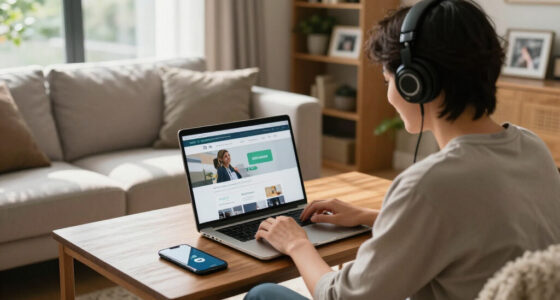

This guide walks you through the complete process of fitting a privacy screen protector to a laptop: measuring your screen correctly, choosing the right type of protector, preparing the screen, and applying the film without bubbles, dust traps, or misalignment. By the end, your screen will be readable when viewed straight on and dark or blank when viewed from an angle of roughly 30 degrees or more — the standard privacy viewing cone.

Get privacy and security gear delivered free with Prime
- Fast, free delivery on millions of items
- Prime Video, Amazon Music and more included
- Member-only deals all year

15.6-Inch Privacy Screen Filter for 16:9 Laptops
- ✔ Compatible screen size: 15.6 inches
- ✔ Aspect ratio: 16:9
- ✔ Resolution: 1920 × 1080

SightPro 14-Inch 16:10 Laptop Privacy Screen Filter
- ✔ Screen size: 14 inches
- ✔ Aspect ratio: 16:10
- ✔ Filter dimensions: 11 15/16 × 7 1/2 in (14.1 in diagonal)

SightPro 14-Inch Magnetic Laptop Privacy Screen, 16:9
- ✔ Screen size: 14 inches
- ✔ Aspect ratio: 16:9
- ✔ Filter dimensions: 12 3/16 × 6 7/8 in (310 × 175 mm)
This guide is for anyone who works with sensitive information in public or shared spaces: commuters, students, office workers handling client data, and anyone subject to workplace privacy policies. No technical skill is required. The only genuinely difficult part is getting a dust-free, bubble-free application, and this guide gives you a method that makes that achievable on the first attempt.
Difficulty: Beginner. Installation itself takes 10-15 minutes, but allow extra time for measuring before you order and for careful screen preparation on application day.
Difficulty: Beginner | Time: 45-60 minutes (including shopping; installation itself takes 10-15 minutes)
What You’ll Need
Tools & Materials:
- A tape measure or rigid ruler marked in inches or millimeters
- A soft microfiber cloth
- A can of compressed air (or a clean, soft brush)
- Two strips of low-tack masking tape or painter’s tape
- A credit card or similar stiff plastic card, wrapped in the microfiber cloth
- Good overhead lighting, or a bright desk lamp you can angle at the screen
- A flat, clean work surface
- Isopropyl alcohol (70% or higher) and a lint-free wipe, if your screen is greasy
Knowledge:
- How to identify your laptop model (printed on the bottom of the chassis or visible in system settings)
- Basic understanding that screen size is measured diagonally, not horizontally
Do not order a protector based on the laptop’s advertised screen size alone. A “14-inch laptop” from one manufacturer can have a screen with different width and height than a 14-inch laptop from another, especially with narrow-bezel designs. Always confirm dimensions before buying, as described in Step 2.
If your laptop is company-managed, check whether IT supplies approved privacy filters before purchasing your own — some organizations have a standard model to maintain compliance.
15.6-Inch Privacy Screen Filter for 16:9 Laptops
This 15.6-inch filter earns our top spot because it delivers the most complete package for the most common laptop format: a 16:9 widescreen display at 1920 × 1080. Its privacy performance is clearly specified — side viewing is limited beyond a 60-degree angle — so you know exactly what protection you’re getting before you buy, which is something the SightPro options leave vague. The filter also blocks 30% of blue light in the 380–495 nm range and doubles as a physical barrier against dust and scratches.Installation flexibility is another reason it leads the lineup. You can choose between a slide-on mount for semi-permanent use or a mounted setup, giving you options the adhesive-only approaches don’t. Compared with the SightPro 14-inch 16:10 filter, this model suits bigger, traditional laptop screens, but the tradeoff is strict: it will not fit 16:10 displays or touchscreens, so buyers with modern slim-bezel machines should skip straight to the SightPro picks. You also need to verify that your visible screen area measures exactly 344 × 194 mm, since even a few millimeters off means a poor fit with visible gaps or overhang.
Pros:
- Clearly specified 60-degree privacy viewing angle
- Blocks 30% of blue light
- Protects the screen from dust and scratches
- Two installation methods: slide-on or mounted
Cons:
- Not compatible with touchscreens
- Fits only 16:9 displays with an exact 344 × 194 mm visible area
Best for: Owners of 15.6-inch 16:9 laptops who want a precise-fit filter with clearly stated privacy angles and dual installation options
Not ideal for: Touchscreen users and anyone with a 16:10 or smaller display
Bottom line: The most transparent and versatile pick for standard 15.6-inch widescreen laptops, provided your measurements match exactly.
“The most transparent and versatile pick for standard 15.6-inch widescreen laptops, provided your measurements match exactly.”
SightPro 14-Inch 16:10 Laptop Privacy Screen Filter
As laptop makers shift to taller 16:10 panels, many 14-inch machines simply cannot use the 15.6-inch filter above — and that’s exactly the gap this SightPro model fills. With dimensions of 11 15/16 by 7 1/2 inches, it targets the 16:10 format found on most modern ultrabooks, and its compatibility spans multiple laptop brands rather than a single manufacturer. The standout differentiator is its anti-glare surface: neither of the other two picks offers glare reduction, which makes this the smarter choice for anyone working near windows or under harsh overhead office lighting.Build quality is solid too, with a stated 8H hardness rating and both glossy and matte surface options, so you can prioritize either vibrancy or reflection control. It also filters UV and blue light alongside its privacy function. Installation comes down to adhesive strips or slide mount tabs, which is more flexible than a fixed mount but less convenient than the magnetic attachment on SightPro’s other entry — if you plan to remove the filter frequently for presentations or screen sharing, the magnetic model is the better fit. Fit tolerance is the main caution: like every filter here, it demands accurate measurement of your screen width and height before ordering.
Pros:
- Anti-glare surface reduces reflections in bright settings
- Fits 16:10 panels common on modern laptops
- Includes adhesive strips and slide mount tabs
- Reduces UV and blue light
Cons:
- Requires careful measurement to confirm fit
- Does not block visibility from directly behind the user
- Not optimized for touchscreens
Best for: Owners of 14-inch 16:10 laptops who work in bright environments and want glare reduction alongside privacy
Not ideal for: Buyers who want tool-free, adhesive-free removal, or those who don’t verify their exact screen dimensions first
Bottom line: The go-to choice for 14-inch 16:10 laptops, especially where glare is as much a problem as wandering eyes.
“The go-to choice for 14-inch 16:10 laptops, especially where glare is as much a problem as wandering eyes.”
SightPro 14-Inch Magnetic Laptop Privacy Screen, 16:9
Where the other two filters commit — adhesive strips, slide mounts, permanent presence — this SightPro magnetic model is built for flexibility. It attaches and removes without any adhesive, snapping on via magnetic stickers, which makes it ideal for people who toggle between private work and collaborative screen sharing throughout the day. The privacy function works as expected: the screen blacks out from side angles while staying clear when viewed straight on, and it filters UV and blue light along the way.The bundled extras are where it pulls ahead of both siblings: a webcam privacy cover, storage folder, and cleaning cloth come in the box, effectively making this a portable privacy kit rather than a single filter. The storage folder matters more than it sounds — removable filters get scratched in bags without one. Compared with the 15.6-inch pick, this model targets 14-inch 16:9 displays (12 3/16 × 6 7/8 inches), and it’s also the only option here that’s Section 889 and TAA compliant, which may be relevant for government or corporate buyers. The tradeoffs are familiar: you must verify dimensions across supported Lenovo, HP, Dell, Acer, Asus, and Samsung models, it’s not optimized for touchscreens, and no filter in this category blocks the view from directly behind you.
Pros:
- Magnetic attachment with no adhesive residue
- Blacks out side views while staying clear head-on
- Filters UV and blue light
- Includes webcam cover, storage folder, and cleaning cloth
Cons:
- Requires checking screen dimensions to confirm fit
- Not optimized for touchscreens
- Does not block visibility from directly behind the user
Best for: Professionals who frequently remove and reattach their filter, plus buyers who want a webcam cover and compliant hardware
Not ideal for: Touchscreen users and anyone unwilling to measure their screen before ordering
Bottom line: The most convenient and best-equipped option for buyers who want privacy on demand rather than privacy all the time.
“The most convenient and best-equipped option for buyers who want privacy on demand rather than privacy all the time.”
As an Amazon Associate we earn from qualifying purchases.
Before You Start
Decide between the two main types of privacy protection before you spend anything:
- Adhesive privacy film: a thin plastic or PET film that sticks directly to the screen, like a phone screen protector. Permanent until deliberately removed, invisible in normal use, and the better choice for laptops that travel with you everywhere. This guide focuses on this type.
- Magnetic or slide-on privacy filter: a rigid filter that attaches with tabs or magnets and can be removed when privacy isn’t needed. Better if you only occasionally need privacy, but it adds thickness and can interfere with closing some laptops.
Also be aware of two trade-offs that apply to every privacy protector: the screen will look dimmer even when viewed straight on (typically 10-30% brightness reduction), and some older privacy films reduce touch sensitivity. If your laptop uses touchscreen input, buy a protector explicitly rated as touch-compatible.
Finally, plan to install the protector in the least dusty environment available. A steamy bathroom shortly after a shower is a surprisingly effective low-dust space; a dry room with carpet, pets, or ceiling fans circulating air is the worst.
Step-by-Step Instructions
Step 1: Power down the laptop and let the screen cool
Shut down the laptop completely — do not just close the lid — and unplug it. Leave the screen off for five minutes so it cools to room temperature. A warm screen softens adhesive film, makes it stretch during application, and causes the film to lift at the edges later.
Tip: Working on a powered-off screen also makes dust particles and fingerprints far easier to see, which matters enormously in the later steps.
Check: The screen is fully dark, at room temperature, and the laptop is unplugged.
Step 2: Measure the screen’s visible viewing area
Place your ruler across the glass area that displays the image and measure it edge to edge, inside the bezel. Record the width by measuring horizontally, then record the height by measuring vertically. Exclude the bezel or frame, and do not measure diagonally for this purpose — diagonal screen size (13″, 14″, 15.6″) is a marketing label, not a fit specification. Write down both measurements to the nearest millimeter, or to the nearest 1/16 inch if your ruler is imperial.
Tip: Measure twice, from both the top and bottom of the screen and from both sides. If the two readings differ, your ruler was angled — remeasure until both agree.
Check: You have two consistent numbers for width and height, for example 309 mm wide by 192 mm tall.
Step 3: Purchase a protector matching your exact dimensions and screen type
Compare your measured dimensions against the product specifications listed by the manufacturer — not the headline screen size. Check any compatible-model list to confirm your laptop model appears on it. Verify the aspect ratio matches (16:9, 16:10, or 3:2), and confirm the product states the privacy viewing angle, typically 60 degrees total (30 degrees each side of center). If your laptop has a touchscreen, confirm touch compatibility explicitly before ordering.
Tip: If no product matches your dimensions exactly, choose one slightly larger rather than smaller, and plan to trim it — though trimming adhesive film cleanly is difficult, so an exact match is strongly preferable. Some manufacturers offer custom-cut options for unusual sizes.
Check: You have a protector whose stated dimensions match your measurements within 1 mm, with a documented 60-degree or narrower privacy angle.
Step 4: Clean the screen thoroughly in a dust-free setting
Move to your chosen low-dust workspace. Angle the screen toward a light source — this reveals dust and smears you cannot see head-on. Blow compressed air across the screen in short bursts to dislodge loose particles, keeping the can upright and a few inches away. If the screen shows fingerprints or grease, wipe it gently with a lint-free cloth lightly dampened with isopropyl alcohol. Finish by wiping the full screen with a dry microfiber cloth in small overlapping circles, working from top to bottom.
Tip: Tilt the screen against the light one final time before moving on. Every speck you remove now is a speck that won’t be trapped permanently under the film.
Check: Viewed at an angle under bright light, the screen shows no visible dust, fibers, or smudges.
Step 5: Dry-fit the protector and attach alignment hinge tabs
Hold the protector above the screen without removing the protective backing — most films ship with two numbered layers. Position it over the viewing area and check the alignment on all four sides. Once it sits correctly, attach two strips of low-tack tape along one edge of the screen (the top edge is easiest), half on the bezel and half overlapping the protector, creating a hinge. This hinge lets you flip the protector up and back down in exactly the same position.
Tip: Check that the protector’s orientation is correct before hinging: some privacy films are directional, and a few have an anti-reflective side meant to face the user. Look for a marked “front” or check the instructions.
Check: The protector flips up on the tape hinge and returns to the exact same aligned position when lowered.
Step 6: Peel the backing and apply the film
Flip the protector up on its hinge. Peel the protective backing away in one slow motion, starting from the hinged edge. Avoid touching the exposed adhesive surface with your fingers — hold the film only by its edges. Bend the film slightly into a shallow curve so the middle touches the screen first, then lower the outer edges down slowly toward the hinge. As the adhesive makes contact, press gently from the center outward with the microfiber-wrapped credit card, working air toward the nearest edge as you go.
Tip: If you see a dust particle land on the adhesive mid-application, stop. Lift the film at that spot, touch the sticky side of a piece of masking tape to the particle to lift it off, then continue. Never wipe the adhesive with a cloth.
Check: The film lies flat across the whole screen with no large trapped air pockets.
Step 7: Push out remaining bubbles and remove the top protective layer
Push any small remaining bubbles toward the nearest screen edge using firm, smooth strokes with the wrapped card, always moving outward, never sideways. Leave bubbles smaller than a pinhead alone — they often disappear on their own within 24-48 hours as the adhesive settles. Once the surface is smooth, peel off the outer protective layer (often numbered “2”) by pulling it from a corner at a shallow angle.
Tip: If a bubble refuses to move, a dust particle is trapped underneath. Lift the film near that spot with tape and remove the particle as described in Step 6, then re-smooth.
Check: The screen is smooth, both protective layers are removed, and no bubble larger than a pinhead remains.
Step 8: Test the privacy effect from multiple angles
Power the laptop back on, open a document with visible text, and sit directly in front of the screen. Confirm the text is clearly readable, only slightly dimmer than before. Step to the side until you are roughly 30 degrees off center and look at the screen again: the content should appear blacked out or heavily darkened. Repeat the check from the other side, and from above if the protector claims vertical privacy.
Tip: Increase screen brightness by 10-20% after installation to compensate for the dimming the filter causes.
Check: Text is readable straight on and unreadable from roughly 30 degrees to either side.
Common Mistakes to Avoid
- Ordering by advertised screen size (e.g., “15.6 inch”) and receiving a protector that doesn’t fit — Always measure the actual width and height of the glass in millimeters and match against the product’s stated dimensions. Diagonal size labels vary between manufacturers, especially on narrow-bezel laptops.
- Applying the film in a dusty room, trapping particles under the adhesive — Install in a recently steamy bathroom or a room without carpet, pets, or fans running. Clean with compressed air first, and keep the screen angled toward a bright light so dust is visible before you commit the adhesive.
- Pressing bubbles sideways or scraping aggressively, scratching or creasing the film — Always push bubbles outward toward the nearest edge with a card wrapped in microfiber, using moderate pressure. If a bubble won’t move, a particle is trapped — lift and remove it rather than forcing it.
- Touching the adhesive layer with fingers, leaving permanent fingerprint marks — Handle the film only by its edges after peeling the backing. If you must handle the adhesive side, use the tape-hinge method to position it without direct contact.
Troubleshooting
Problem: Bubbles remain after smoothing and don’t disappear within two days
Solution: Large bubbles contain air that can’t migrate. Lift the film near the bubble using a strip of tape as a handle, press the film back down from just outside the bubble toward the lifted point, and smooth with the wrapped card. Tiny persistent speck-bubbles usually mark a trapped dust particle; remove it with the tape-touch method described in Step 6.
Problem: The protector’s edges lift or peel after a few days
Solution: Lifting usually means the screen wasn’t fully clean at the edges or the laptop lid was closed too soon after application. Press the lifted edge down firmly with the wrapped card and avoid closing the lid for a few hours. If lifting continues, the film may be slightly oversized and catching on the bezel — trimming 0.5 mm off the affected edge with a sharp craft knife against a steel ruler usually resolves it.
Problem: The screen looks too dark even when viewed straight on
Solution: First, increase brightness by 10-30%. If it’s still too dim, check the film orientation — some privacy films are directional and perform worse installed backwards. If orientation is correct, your viewing position may be too low; privacy filters narrow the vertical cone too, so raise the laptop or lower your chair slightly so your eyes are level with the screen center.
Problem: Touchscreen input responds poorly or erratically
Solution: Confirm the protector is rated as touch-compatible; standard privacy films can dampen capacitive sensing. If it is rated correctly, power-cycle the laptop — some devices recalibrate input after a screen change. Persistent interference means the film is too thick for your digitizer and should be replaced with a thinner touch-rated model.
What Success Looks Like
Your installation is successful when all of the following are true:
- The protector covers the full viewing area with no overlap onto the bezel and no gaps larger than 1 mm at any edge.
- The screen surface is smooth, with no bubbles bigger than a pinhead and no visible dust or fingerprints under the film.
- Text and images are clearly readable when you sit directly in front of the laptop, with only modest dimming.
- Screen content is unreadable (blacked out or heavily darkened) when viewed from approximately 30 degrees or more to either side.
- All edges lie flat with no lifting, and the laptop lid closes fully without resistance.
Next Steps
After installation, allow 24 hours before cleaning the film so the adhesive fully bonds. When you do clean it, use only a dry or lightly dampened microfiber cloth — never spray liquid directly onto a privacy film, as liquid can wick under the edges and degrade the adhesive.
Check the film’s edges monthly for lifting and press down any that appear. If your laptop leaves a permanent shared workspace, a removable magnetic filter may be worth adding as a backup for times you want to show your screen to a colleague — simply peel the film’s edge with tape or slide the magnetic filter off to share content.
Expect to replace adhesive privacy film every 1-2 years, as the privacy coating and adhesive degrade with cleaning and heat. If you change laptops, re-measure rather than reusing the old film dimensions, and if you handle regulated data at work, confirm with your IT department that a consumer filter satisfies your organization’s screen-privacy policy.
Frequently Asked Questions
Will a privacy screen protector damage my laptop screen?
No, quality adhesive privacy films use non-permanent adhesive designed to be removed without residue. To remove one safely, lift a corner with tape and peel slowly at a shallow angle. If any adhesive residue remains, it comes off with a small amount of isopropyl alcohol on a lint-free cloth. Avoid very cheap unbranded films, which occasionally use aggressive adhesives.
Do privacy protectors reduce screen brightness or clarity?
Yes, slightly. Most privacy films cut brightness by 10-30% straight on because the light-filtering layers that block side viewing also reduce total light output. Compensate by raising brightness. Clarity straight on should remain essentially unchanged; if it’s noticeably hazy, the film may be installed backwards or be a low-quality product.
Can I use a privacy protector on a touchscreen laptop?
Often, yes — but only with a film explicitly rated as touch-compatible. Standard privacy films can be thick enough to weaken the capacitive signal, causing missed or erratic touches. Check the product specifications before buying, and test touch response thoroughly within the return window.
What is the typical privacy viewing angle, and is it adjustable?
Most privacy protectors block viewing beyond about 30 degrees from center on each side, giving a 60-degree usable viewing cone. This angle is fixed by the film’s micro-louver structure and cannot be adjusted. Some premium filters offer narrower 45-degree cones for higher security — choose based on how close observers typically sit.
Can I remove and reapply the protector if I make a mistake?
Yes, once or twice. Lift the film with a piece of tape as a handle, peel it back slowly, and reapply following the same hinge method. Reapplication risks dust contamination and weakens the adhesive slightly, so treat it as a recovery option, not a routine adjustment. Repeated removal usually means it’s time for a new protector.
Fall Picks
fall essentials
As an affiliate, we earn on qualifying purchases.
![216M Spy TVs – The LG Smart TV Problem [Video]](https://aiespionage.net/wp-content/uploads/2026/09/216m-spy-tvs-the-lg-smart-tv-problem-video-featured-560x300.jpg)