
Use this guide to choose a privacy-focused VPN, install it on your devices, and check that it connects without exposing your regular IP address through common leaks. It is for people who can install apps and manage basic device settings; no networking experience is required. Allow 30-60 minutes for research, setup, and checks. A VPN encrypts traffic between your device and the VPN provider, but it does not make you anonymous or protect you from every online threat.

Get privacy and security gear delivered free — and shop member deals
- Fast, free delivery on millions of items
- Access to Prime Big Deal Days deals on October 6–7
- Prime Video, Amazon Music and more included
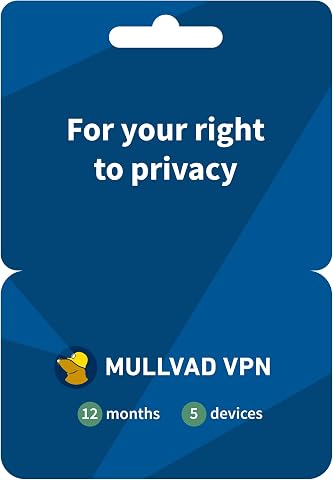
Mullvad VPN 12-Month Subscription for 5 Devices
- ✔ Subscription duration: 12 months
- ✔ Simultaneous devices: 5
- ✔ Supported platforms: iOS, Android, Windows 10+, macOS, Debian, Ubuntu, Fedora

NordVPN Basic 1-Year Subscription for 10 Devices, Digital Code
- ✔ Plan: Basic
- ✔ Subscription term: 1 year
- ✔ Simultaneous devices: Up to 10

HMA VPN Privacy Protection Service for 5 Devices, 1 Year
- ✔ Subscription duration: 1 year
- ✔ Device limit: 5 devices
- ✔ Platforms: Windows, macOS, iOS, Android, Linux, routers
Difficulty: Beginner | Time: 30-60 minutes
What You’ll Need
Tools & Materials:
- A computer, phone, or tablet you want to protect
- A current operating system and access to its official app store or the VPN provider’s official website
- A private email address and a payment method, if the service requires them
- A web browser for checking your public IP address and DNS leak status
Knowledge:
- Ability to install an app and sign in
- Ability to connect to Wi-Fi or mobile data and open device settings
Decide which devices and networks you want to cover, such as a laptop on public Wi-Fi or your phone while traveling. Review the provider’s current price, renewal terms, cancellation process, and supported devices before paying. Avoid downloading VPN apps from links in unsolicited messages or third-party download sites.
Mullvad VPN 12-Month Subscription for 5 Devices
Mullvad is our top pick for buyers who want to share as little identifying information as possible at sign-up. Its listing says no email or other personal information is required and that it keeps no activity logs. The product details also cite regular independent security audits, giving privacy-minded buyers more concrete information to weigh than the other two listings provide. These claims do not remove the need to read the provider’s policy, but they make Mullvad’s privacy case the most direct in this comparison.It supports five devices at once and lists WireGuard alongside major desktop and mobile platforms. That should cover a modest personal setup, though NordVPN’s ten-device allowance is better for a larger household. Mullvad’s main friction is practical: this subscription uses an activation code, and Linux support is limited to select distributions. HMA lists routers among its compatible options, while Mullvad’s supplied details do not; choose accordingly if whole-network coverage matters more than minimizing account information.
Pros:
- No email address or other personal information required, according to the listing
- No-activity-logs policy and regular independent security audits are stated
- WireGuard support and coverage for major mobile and desktop platforms
- Five simultaneous device connections
Cons:
- The subscription requires an activation code
- Linux support is listed only for select distributions
- Five devices may be restrictive compared with NordVPN’s ten
Best for: Privacy-conscious individuals or small households who prioritize a sign-up that requires no personal information and need up to five connections.
Not ideal for: Buyers who need more than five simultaneous connections, broad Linux distribution support, or listed router compatibility.
Bottom line: Mullvad is the strongest fit in this group when minimizing account information matters more than device count or broad compatibility.
“Mullvad is the strongest fit in this group when minimizing account information matters more than device count or broad compatibility.”
NordVPN Basic 1-Year Subscription for 10 Devices, Digital Code
NordVPN Basic is the practical choice when one subscription needs to cover more devices. Its stated limit of ten simultaneous connections is twice Mullvad’s five, and the listing includes support for a broad set of platforms, from desktop and mobile systems to Fire TV Stick and web browsers. For a family or a user with many personal devices, that headroom may matter more than Mullvad’s more explicit no-personal-information sign-up claim.Its distinctive privacy-related options are Double VPN and obfuscated servers. These give buyers additional connection choices, while public Wi-Fi protection addresses a common situation where people want encrypted traffic away from home. NordVPN lists virtual locations in 111 countries and thousands of servers across 224 locations. Those figures describe network reach; they should not be treated as proof of stronger privacy than Mullvad or HMA. The supplied description also does not state a specific speed result or describe account-information requirements in the detail Mullvad does. The digital code expires at the end of the one-year term unless auto-renewal is enabled, so we should keep that renewal condition in mind.
Pros:
- Up to ten simultaneous devices, more than either competitor
- Double VPN and obfuscated servers are included
- Wide platform coverage, including Fire TV Stick and web browsers
- Public Wi-Fi protection and server locations around the world
Cons:
- The subscription expires after one year unless auto-renewal is enabled
- The listing provides no specific speed measurements
- The description gives less detail on personal information requirements than Mullvad’s
Best for: Households or device-heavy users who want up to ten simultaneous connections and value Double VPN, obfuscated servers, and broad platform support.
Not ideal for: Buyers whose first criterion is a clearly stated no-personal-information sign-up, or who want speed claims and detailed privacy-policy information in the product listing.
Bottom line: NordVPN is the best match for buyers who need more connections and specialized server options, provided they track the renewal terms.
“NordVPN is the best match for buyers who need more connections and specialized server options, provided they track the renewal terms.”
HMA VPN Privacy Protection Service for 5 Devices, 1 Year
HMA is the broad-coverage pick for buyers who care about reaching a wide range of server locations and connecting less typical devices. Its listing names servers in more than 190 countries and supports routers as well as Windows, macOS, iOS, Android, and Linux. That makes it a more natural fit than Mullvad when router compatibility is a deciding factor, and its country coverage is broader by the listed country count than NordVPN’s 111 virtual locations. Coverage figures use different terms in the descriptions, so we should compare them as stated rather than assume they measure identical things.The service lists 256-bit AES encryption, automatic Wi-Fi protection, and a no-activity-logs policy. Automatic protection can help when a device joins public Wi-Fi, while router support may suit buyers seeking protection for devices that cannot run a standard app. However, the supplied HMA details do not explain personal-information requirements or mention independent audits, unlike Mullvad’s listing. It also covers five devices, leaving NordVPN with the advantage for larger groups. We would choose HMA for reach and compatibility, not because the provided information establishes a stronger privacy posture.
Pros:
- Server coverage listed in over 190 countries
- Router support alongside major desktop and mobile platforms
- 256-bit AES encryption is specified
- Automatic Wi-Fi protection and a no-activity-logs policy are listed
Cons:
- The supplied description does not specify personal-information requirements
- No independent audit details are included in the supplied information
- Five-device limit is lower than NordVPN’s ten
Best for: Buyers who want router compatibility, automatic Wi-Fi protection, and broad stated country coverage across common operating systems.
Not ideal for: Privacy-focused buyers who want detailed sign-up data practices or audit information in the listing, or households needing more than five connections.
Bottom line: HMA makes the most sense when broad location and router support matter more than the privacy transparency details Mullvad supplies.
“HMA makes the most sense when broad location and router support matter more than the privacy transparency details Mullvad supplies.”
As an Amazon Associate we earn from qualifying purchases.
Before You Start
A VPN shifts some trust from your internet provider or local network to the VPN provider. The provider may be able to see connection metadata, so read its privacy policy and understand what it logs. A “no logs” claim alone does not prove how a service operates. Look for clear descriptions of data collection, retention, independent audits, ownership, and how legal requests are handled.
VPN protection usually applies only while the VPN is connected and may not cover every app or device. It does not prevent phishing, malware, account tracking, or websites identifying you through cookies and logged-in accounts. If you need a VPN for workplace access, regulated data, or a specific country’s rules, follow the applicable organization or legal guidance.
Step-by-Step Instructions
Step 1: Define what you need the VPN to do
Write down your main use, such as protecting traffic on shared Wi-Fi, reducing what your internet provider can see, or securely reaching a work network. List the devices you need to protect and any must-have features, such as a kill switch, split tunneling, or support for your operating system. Keep the list short so marketing features do not distract you from the privacy and compatibility questions.
Tip: A VPN does not hide activity from a service you sign in to, and it cannot prevent a website from recognizing your account.
Check: You have a short list of devices, your main reason for using a VPN, and the features you actually need.
Step 2: Compare providers’ privacy and security details
Read the privacy policy and security documentation for several providers. Check what account, payment, diagnostic, and connection data each collects; how long it keeps that data; and whether it shares data with affiliates or service providers. Look for a recent independent security or privacy audit and read what the audit covered. Confirm support for your devices, modern encryption protocols, a kill switch, and a clear way to contact support. Compare total cost after introductory pricing, renewal rates, and cancellation terms.
Tip: Treat absolute promises such as “complete anonymity” as advertising. A VPN provider cannot guarantee that every website or app will be unable to identify you.
Check: You can explain what information your preferred provider says it collects, which devices it supports, and what the subscription will cost after renewal.
Step 3: Create an account and install the official app
Open the provider’s official website or find its publisher in your device’s official app store. Confirm the publisher name before installing. Create an account with a strong, unique password; use a password manager if available. Turn on multifactor authentication if the provider offers it. Download the app for each device you plan to protect, and decline unrelated bundled software or browser extensions you do not need.
Tip: A VPN browser extension may protect only browser traffic. Install the full device app if you want VPN coverage for other apps too.
Check: The official app is installed on each selected device, and you can sign in to your account.
Step 4: Set the default connection and privacy controls
Open the VPN app’s settings. Choose a current supported protocol, or leave the recommended automatic protocol selected if you are unsure. Turn on the kill switch so internet traffic is blocked if the VPN connection drops, where your device and app support it. Enable auto-connect on untrusted Wi-Fi if you want protection to start automatically. Review split tunneling before using it: excluded apps or sites may connect outside the VPN. Leave the VPN’s DNS protection enabled unless you have a specific reason to change it.
Tip: A kill switch can interrupt internet access when the VPN disconnects. Learn where its setting is so you can diagnose a connection block later.
Check: You can see which protocol is selected and whether the kill switch and auto-connect settings are enabled as intended.
Step 5: Connect to a suitable VPN location
Choose a nearby VPN server for routine browsing, since a shorter route often gives better speed. Connect, then wait for the app to show a protected or connected status. If you need a service available only in a particular region, select a server there and check that service’s rules. Do not keep changing locations to solve unrelated account or website problems.
Tip: Websites may ask for extra verification when your apparent location changes. That does not by itself mean the VPN is unsafe.
Check: The app shows an active connection and names the selected server or location.
Step 6: Check your public IP address and DNS behavior
While connected, open a reputable IP-check page in your browser and note the displayed public IP and approximate location. They should reflect the VPN server, not your usual internet connection. Use a DNS leak test from a reputable provider; the listed DNS resolvers should be consistent with the VPN service or its disclosed DNS arrangements. Repeat the checks after reconnecting if the results look inconsistent. Do not enter passwords or personal information into testing pages.
Tip: IP and DNS tests are snapshots. They can identify some configuration problems, but they do not prove total anonymity or that every app uses the VPN.
Check: The public IP shown differs from your normal connection, and the DNS results do not reveal an unexpected resolver tied to your usual network.
Step 7: Test the kill switch and automatic connection
Check the app’s help instructions for a safe way to simulate a VPN interruption; use that method if available. Confirm that the kill switch blocks internet traffic during the interruption, then reconnect. Next, test auto-connect on a trusted test network or after restarting your device. Restore any settings changed for the test. If the provider gives no safe interruption procedure, confirm the kill switch is enabled and review its documented behavior instead of forcing a disconnection.
Tip: Do not perform an interruption test during a call, file transfer, or other task that could be disrupted.
Check: The app reconnects as expected, and its documented kill switch behavior matches what you observe or can confirm from its support instructions.
Step 8: Set a routine for using and reviewing the VPN
Leave the VPN connected when you want its protection, especially on networks you do not control. Check the app when a protected connection matters; an installed VPN that is disconnected does not route traffic through the VPN. Review app updates, account security settings, and subscription renewal terms periodically. If you stop using the service, cancel through the stated account or app-store process and remove the app from devices where you no longer need it.
Tip: Some banking, streaming, or work services may block VPN connections or require an approved network. Follow those services’ rules and use their support guidance if access fails.
Check: You know how to confirm connection status, where to change the settings, and how to manage or cancel the subscription.
Common Mistakes to Avoid
- Choosing a provider based only on price or an unverified “no logs” claim. — Read the privacy policy, check what any audit covered, and compare renewal and cancellation terms before subscribing.
- Assuming the VPN is active because its app is installed. — Check the app’s connection status when privacy matters, and enable auto-connect if it suits your use.
- Using split tunneling without knowing which traffic bypasses the VPN. — Review the excluded apps or sites and remove exclusions you do not recognize or need.
- Treating a VPN as protection from phishing, malware, or account tracking. — Use unique passwords, multifactor authentication, device updates, and careful link handling alongside the VPN.
Troubleshooting
Problem: The VPN will not connect.
Solution: Check that your internet works with the VPN disconnected, update and reopen the app, then try another server or the provider’s recommended protocol. If you are on a managed work or school network, ask its administrator whether VPN connections are restricted.
Problem: Websites load slowly or stop loading after enabling the kill switch.
Solution: Try a nearby server, wait for the connection to complete, and check whether the kill switch is blocking traffic during a dropped connection. Review split tunneling and DNS settings, then consult the provider’s support instructions before disabling protective controls.
Problem: An IP or DNS test shows unexpected results.
Solution: Reconnect to the VPN and repeat the test in a fresh browser tab. Check that the app is connected, DNS protection is on, and the device is not using an app or proxy that bypasses the VPN. Contact the provider with the test details if the result persists.
Problem: A site or app blocks access while the VPN is connected.
Solution: Check the service’s VPN rules. If permitted, try a different server or temporarily disconnect only when you are comfortable using your regular connection. For work accounts, use the approved network or contact your administrator.
What Success Looks Like
Your chosen provider has a privacy policy and terms you have reviewed; its official app is installed and signed in on the devices you selected; the VPN connects and shows an active server; and IP and DNS checks do not show your usual connection unexpectedly. The kill switch and auto-connect settings match your needs, and you know how to check connection status and manage the subscription. These checks confirm basic setup, not complete anonymity or protection from every online risk.
Next Steps
Keep the VPN app and your device operating system updated. Recheck the connection after major app or network changes, and review the provider’s privacy policy and renewal price before the subscription renews. Add other devices only through official installation sources. If you need stronger protection for a specific threat, identify that threat and choose additional measures suited to it; a VPN alone may not address it.
Frequently Asked Questions
Does a privacy VPN make me anonymous?
No. It hides your public IP address from sites you visit and encrypts the connection to the VPN provider, but the provider may see connection information. Websites can still recognize accounts, cookies, and browser characteristics.
Should I leave the VPN on all the time?
You can leave it connected when you want traffic routed through the VPN. Some apps or networks may not work properly with a VPN, so check connection status and follow any workplace or service requirements.
Is a free VPN safe to use?
Free services vary. Before using one, check how it funds the service, what data it collects, whether it limits or sells usage information, and whether its security practices have been reviewed. A low price alone does not establish privacy.
Do I need a separate VPN app for every device?
Install the provider’s app on each device you want to protect, subject to the plan’s device limit. A VPN set up on a router may cover devices connected through that router, but it requires compatible hardware and may offer fewer per-device controls.
How can I tell whether the VPN is working?
Check that the app reports an active connection, then compare the public IP shown by an IP-check page with the one shown while disconnected. Run a DNS leak test as an additional check. These tests catch some problems but cannot prove that every app’s traffic is covered.
Evergreen bestsellers Picks
bestsellers
As an affiliate, we earn on qualifying purchases.